
Runtimes and Services
A Coast runs inside a container runtime — an outer container that hosts its own Docker (or Podman) daemon. Your project's services run inside that inner daemon, completely isolated from other Coast instances. Currently, DinD (Docker-in-Docker) is the only production-tested runtime. At this time we advise you stick with DinD until Podman and Sysbox support has been thoroughly tested.
Runtimes
The runtime field in your Coastfile selects which container runtime backs the Coast. The default is dind and you can omit it entirely:
[coast]
name = "my-app"
runtime = "dind"
Three values are accepted: dind, sysbox, and podman. In practice, only DinD is wired into the daemon and has been tested end-to-end.
DinD (Docker-in-Docker)
The default and only runtime you should use today. Coast creates a container from the docker:dind image with --privileged mode enabled. Inside that container, a full Docker daemon starts up and your docker-compose.yml services run as nested containers.
DinD is fully integrated:
- Images are pre-cached on the host and loaded into the inner daemon on
coast run - Per-instance images are built on the host and piped in via
docker save | docker load - The inner daemon's state is persisted in a named volume (
coast-dind--{project}--{instance}) at/var/lib/docker, so subsequent runs skip image loading entirely - Ports are published directly from the DinD container to the host
- Compose overrides, shared service network bridging, secret injection, and volume strategies all work
Sysbox (future)
Sysbox is a Linux-only OCI runtime that provides rootless containers without --privileged. It would use --runtime=sysbox-runc instead of privileged mode, which is a better security posture. The trait implementation exists in the codebase but is not connected to the daemon. It does not work on macOS.
Podman (future)
Podman would replace the inner Docker daemon with a Podman daemon running inside quay.io/podman/stable, using podman-compose instead of docker compose. The trait implementation exists but is not connected to the daemon.
When Sysbox and Podman support stabilizes, this page will be updated. For now, leave runtime as dind or omit it.
Docker-in-Docker Architecture
Every Coast is a nested container. The host Docker daemon manages the outer DinD container, and the inner Docker daemon inside it manages your compose services.
Host machine
│
├── Docker daemon (host)
│   │
│   ├── coast container: dev-1 (docker:dind, --privileged)
│   │   │
│   │   ├── Inner Docker daemon
│   │   │   ├── web        (your app, :3000)
│   │   │   ├── postgres   (database, :5432)
│   │   │   └── redis      (cache, :6379)
│   │   │
│   │   ├── /workspace          ← bind mount of your project root
│   │   ├── /image-cache        ← read-only mount of ~/.coast/image-cache/
│   │   ├── /coast-artifact     ← read-only mount of the build artifact
│   │   ├── /coast-override     ← generated compose overrides
│   │   └── /var/lib/docker     ← named volume (inner daemon state)
│   │
│   ├── coast container: dev-2 (docker:dind, --privileged)
│   │   └── (same structure, fully isolated)
│   │
│   └── shared postgres (host-level, bridge network)
│
└── ~/.coast/
    ├── image-cache/    ← OCI tarballs shared across all projects
    └── state.db        ← instance metadata
When coast run creates an instance, it:
- Creates and starts the DinD container on the host daemon
- Polls
docker infoinside the container until the inner daemon is ready (up to 120 seconds) - Checks which images the inner daemon already has (from the persistent
/var/lib/dockervolume) and loads any missing tarballs from the cache - Pipes in per-instance images built on the host via
docker save | docker load - Binds
/host-projectto/workspaceso compose services see your source code - Runs
docker compose up -dinside the container and waits for all services to be running or healthy
The persistent /var/lib/docker volume is the key optimization. On a fresh coast run, loading images into the inner daemon can take 20+ seconds. On subsequent runs (even after coast rm and re-run), the inner daemon already has the images cached and startup drops to under 10 seconds.
Services
Services are the containers (or processes, in the case of bare services) running inside your Coast. For a compose-based Coast, these are the services defined in your docker-compose.yml.
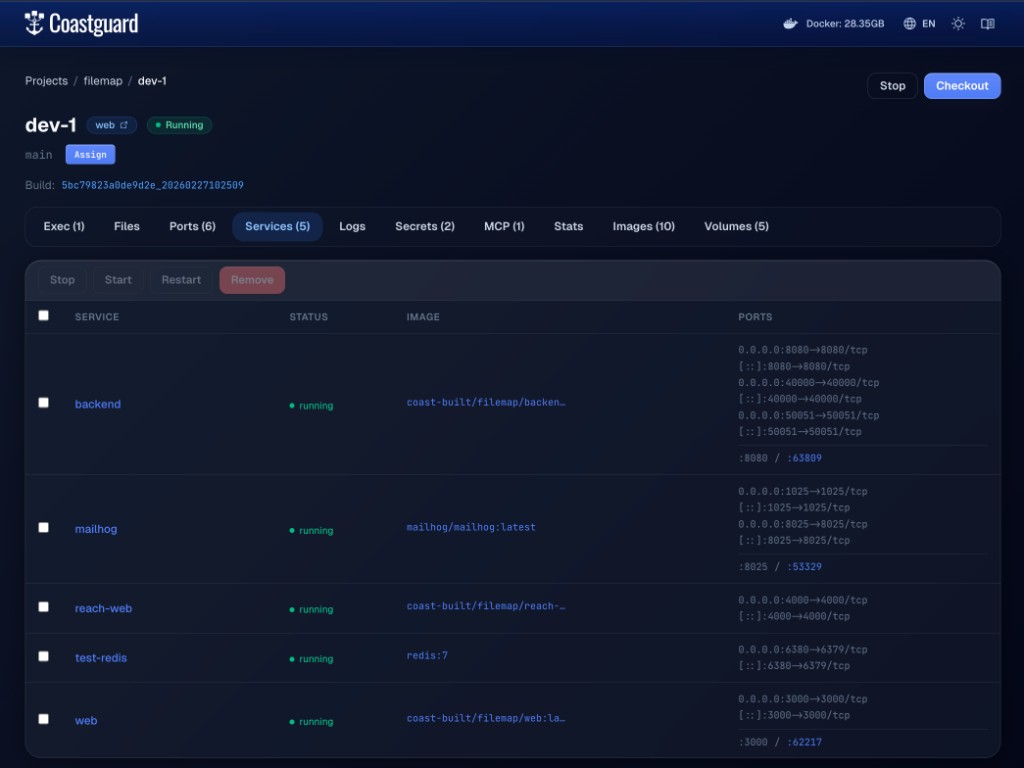 The Coastguard Services tab showing compose services, their status, images, and port mappings.
The Services tab in Coastguard shows every service running inside a Coast instance:
- Service — the compose service name (e.g.
web,backend,redis). Click through to see detailed inspect data, logs, and stats for that container. - Status — whether the service is running, stopped, or in an error state.
- Image — the Docker image the service is built from.
- Ports — the raw compose port mappings and the coast-managed canonical/dynamic ports. Dynamic ports are always accessible; canonical ports only route to the checked-out instance.
You can select multiple services and batch stop, start, restart, or remove them from the toolbar.
Services that are configured as shared services run on the host daemon rather than inside the Coast, so they do not appear in this list. They have their own tab.
coast ps
The CLI equivalent of the Services tab is coast ps:
coast ps dev-1Services in coast instance 'dev-1':
NAME STATUS PORTS
backend running 0.0.0.0:8080->8080/tcp, 0.0.0.0:40000->40000/tcp
mailhog running 0.0.0.0:1025->1025/tcp, 0.0.0.0:8025->8025/tcp
reach-web running 0.0.0.0:4000->4000/tcp
test-redis running 0.0.0.0:6380->6379/tcp
web running 0.0.0.0:3000->3000/tcpUnder the hood, the daemon executes docker compose ps --format json inside the DinD container and parses the JSON output. The results go through several filters before being returned:
- Shared services are stripped out — they run on the host, not inside the Coast.
- One-shot jobs (services without ports) are hidden once they exit successfully. If they fail, they show up so you can investigate.
- Missing services — if a long-running service that should be present is not in the output, it is added with a
downstatus so you know something is wrong.
For deeper inspection, use coast logs to tail service output and coast exec to get a shell inside the Coast container. See Logs for the full details on log streaming and the MCP tradeoff.
coast logs dev-1 --service web --tail 100
coast exec dev-1