
Exec & Docker
coast exec drops you into a shell inside the Coast's DinD container. Your working directory is /workspace — the bind-mounted project root where your Coastfile lives. This is the primary way to run commands, inspect files, or debug services inside a Coast from your host machine.
coast docker is the companion command for talking to the inner Docker daemon directly.
coast exec
Open a shell inside a Coast instance:
coast exec dev-1This starts an sh session at /workspace. Coast containers are Alpine-based, so the default shell is sh, not bash.
You can also run a specific command without entering an interactive shell:
coast exec dev-1 ls -la
coast exec dev-1 -- npm install
coast exec dev-1 -- go test ./...
coast exec dev-1 --service web
coast exec dev-1 --service web -- php artisan test
Everything after the instance name is passed as the command. Use -- to separate flags that belong to your command from flags that belong to coast exec.
Pass --service <name> to target a specific compose service container instead of the outer Coast container. Pass --root when you need raw container-root access instead of Coast's default host UID:GID mapping.
Working Directory
The shell starts at /workspace, which is your host project root bind-mounted into the container. This means your source code, Coastfile, and all project files are right there:
/workspace $ ls
Coastfile       README.md       apps/           packages/
Coastfile.light go.work         infra/          scripts/
Coastfile.snap  go.work.sum     package-lock.json
Any changes you make to files under /workspace are reflected on the host immediately — it is a bind mount, not a copy.
Interactive vs Non-Interactive
When stdin is a TTY (you are typing at a terminal), coast exec bypasses the daemon entirely and runs docker exec -it directly for full TTY passthrough. This means colors, cursor movement, tab completion, and interactive programs all work as expected.
When stdin is piped or scripted (CI, agent workflows, coast exec dev-1 -- some-command | grep foo), the request goes through the daemon and returns structured stdout, stderr, and an exit code.
File Permissions
The exec runs as your host user's UID:GID, so files created inside the Coast have the correct ownership on the host. No permission mismatches between host and container.
coast docker
While coast exec gives you a shell in the DinD container itself, coast docker lets you run Docker CLI commands against the inner Docker daemon — the one managing your compose services.
coast docker dev-1                    # defaults to: docker ps
coast docker dev-1 ps                 # same as above
coast docker dev-1 compose ps         # docker compose ps for the active Coast-managed stack
coast docker dev-1 images             # list images in the inner daemon
coast docker dev-1 compose logs web   # docker compose logs for a service
Every command you pass is prefixed with docker automatically. So coast docker dev-1 compose ps runs docker compose ps inside the Coast container, talking to the inner daemon.
coast exec vs coast docker
The distinction is what you are targeting:
| Command | Runs as | Target |
|---|---|---|
coast exec dev-1 ls /workspace |
sh -c "ls /workspace" in DinD container |
The Coast container itself (your project files, installed tools) |
coast exec dev-1 --service web |
docker exec ... sh in the resolved inner service container |
A specific compose service container |
coast docker dev-1 ps |
docker ps in DinD container |
The inner Docker daemon (your compose service containers) |
coast docker dev-1 compose logs web |
docker compose logs web in DinD container |
A specific compose service's logs via the inner daemon |
Use coast exec for project-level work — running tests, installing dependencies, inspecting files. Use coast docker when you need to see what the inner Docker daemon is doing — container status, images, networks, compose operations.
Coastguard Exec Tab
The Coastguard web UI provides a persistent interactive terminal connected over WebSocket.
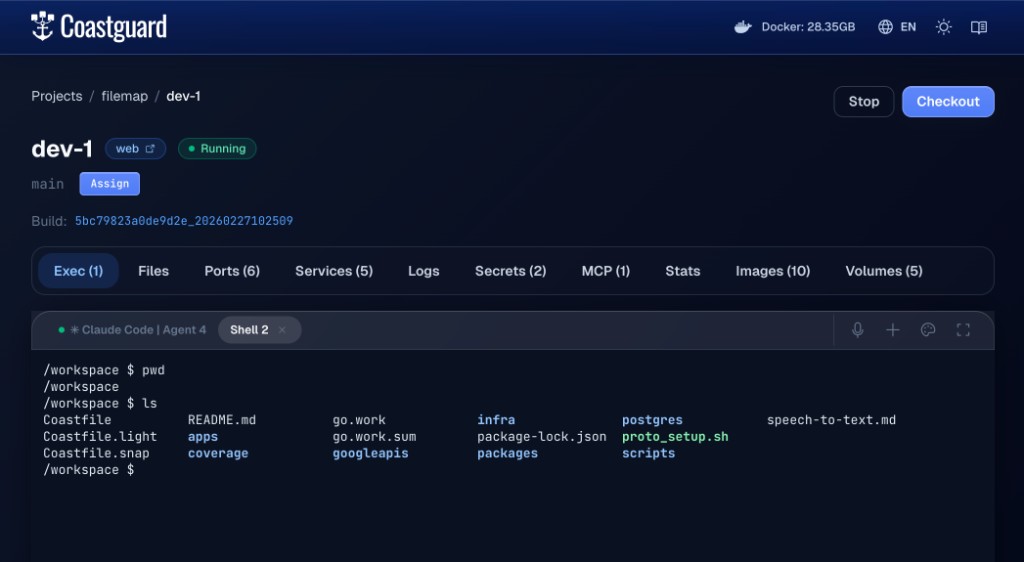 The Coastguard Exec tab showing a shell session at /workspace inside a Coast instance.
The terminal is powered by xterm.js and offers:
- Persistent sessions — terminal sessions survive page navigation and browser refreshes. Reconnecting replays the scrollback buffer so you pick up where you left off.
- Multiple tabs — open several shells at once. Each tab is an independent session.
- Agent shell tabs — spawn dedicated agent shells for AI coding agents, with active/inactive status tracking.
- Fullscreen mode — expand the terminal to fill the screen (Escape to exit).
Beyond the instance-level exec tab, Coastguard also provides terminal access at other levels:
- Service exec — click into an individual service from the Services tab to get a shell inside that specific inner container (this does a double
docker exec— first into the DinD container, then into the service container). - Shared service exec — get a shell inside a host-level shared service container.
- Host terminal — a shell on your host machine at the project root, without entering a Coast at all.
When to Use Which
coast exec— run project-level commands inside the DinD container, or pass--serviceto open a shell or run a command inside a specific compose service container.coast docker— inspect or manage the inner Docker daemon (container status, images, networks, compose operations).- Coastguard Exec tab — interactive debugging with persistent sessions, multiple tabs, and agent shell support. Best when you want to keep several terminals open while navigating the rest of the UI.
coast logs— for reading service output, usecoast logsinstead ofcoast docker compose logs. See Logs.coast ps— for checking service status, usecoast psinstead ofcoast docker compose ps. See Runtimes and Services.