Introducing Remote Coasts
Coasts have always run locally. One Coast per worktree, each with its own docker-compose stack running inside a Docker container. That works well until your laptop runs out of RAM.
Today we are shipping remote coasts. You can now run some of your Coasts on a remote machine while keeping others local. Your editor, your agents, and git all stay on your laptop. The CLI is the same either way. You pick which Coasts run where, and the rest is transparent.
Coasts is open source: github.com/coast-guard/coasts. If you already know what Coasts are, skip to the remote stuff.
Quick background on Coasts
A Coast is a containerized host. It runs your docker-compose inside a Docker container (Docker-in-Docker), so each Coast gets its own isolated network. Inside, your services listen on their normal ports: web on 3000, postgres on 5432, redis on 6379. On the host, each Coast gets dynamically allocated ports. No conflicts, even when you are running three Coasts at the same time.
coast run dev-1
coast run dev-2
coast run dev-3
Each one maps to a git worktree. coast assign switches which branch a Coast is pointed at by rebinding a Linux mount. Your dev server picks up the new files. No docker-compose down && up.
You can share services that do not need to vary per branch (postgres, redis) and isolate the ones that do (web, api, worker). The Coastfile declares per-service assign strategies: none, hot, restart, or rebuild.
Agents use Coasts by editing files on the host (shared filesystem) and running commands with coast exec. Discovery is one command: coast lookup returns the instance name, dynamic ports, and some example exec invocations.
That is the short version. The docs have the rest.
Why remote
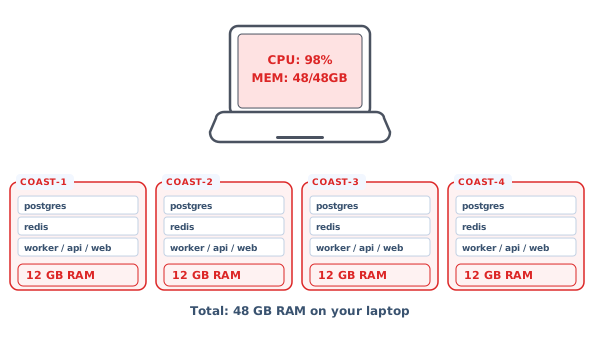
Each Coast runs a full DinD container with your entire compose stack. That takes real RAM. A typical project might use 10-12 GB per Coast. Run three or four in parallel and you are looking at 40+ GB on your laptop:
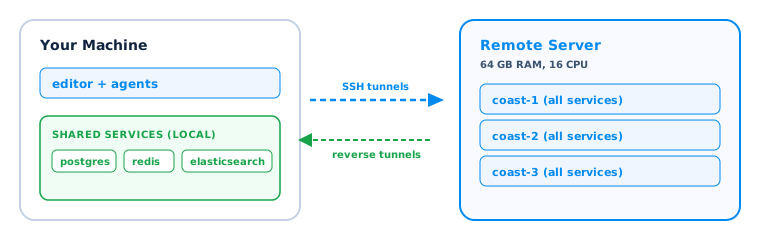
Remote coasts move the DinD containers, compose services, and image builds to a remote machine. Your editor and agents stay local. Shared services like postgres can stay local too, tunneled to the remote over SSH. You can register as many remote machines as you want and spread coasts across them, so you are not limited by any single machine's resources.
How it works
A remote coast is really two containers.
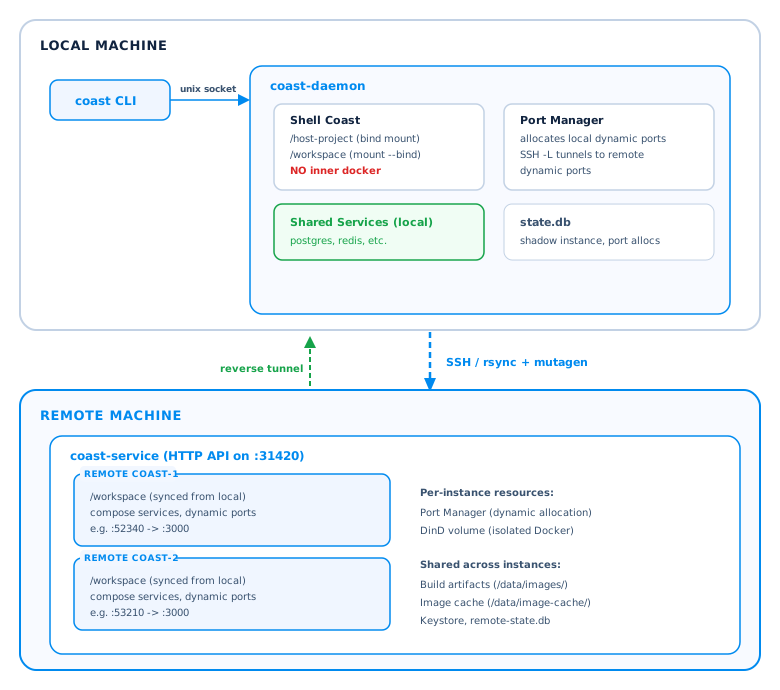
On your local machine, the daemon creates a shell coast: a lightweight container with the same bind mounts as a normal coast (/host-project, /workspace) but no inner Docker and no compose. It is just there to keep the filesystem bridge working so your editor and agents can read and write files normally.
On the remote machine, coast-service runs the actual DinD container with your compose stack, dynamic ports, and build artifacts. The daemon talks to coast-service exclusively over SSH. It is never exposed to the public internet.
Tunnels
The daemon uses two kinds of SSH tunnels.
Forward tunnels (ssh -L) bring remote service ports to your laptop. For each service, the daemon allocates a local dynamic port and tunnels it to the corresponding remote dynamic port. When you open localhost:62217 in your browser, that goes through the tunnel to the remote DinD container where the web server is running.
Reverse tunnels (ssh -R) go the other direction. If postgres is running as a shared service on your laptop, the daemon creates a reverse tunnel so the remote DinD container can reach it. Inside the container, services connect via host.docker.internal, which resolves through the tunnel back to your machine.
The full port chain looks like this:
localhost:3000 (canonical, via coast checkout / socat)
       ↓
localhost:{local_dynamic} (allocated by daemon)
       ↓ SSH -L tunnel
remote:{remote_dynamic} (allocated by coast-service)
       ↓ Docker port publish
DinD container :3000 (canonical, where the app listens)
All dynamic in the middle, canonical at both endpoints. That is what lets you run multiple instances of the same project on one remote without port conflicts.
The tunnel layer also has automatic recovery. A background health loop probes each port every 5 seconds. If your laptop sleeps or the network drops, dead tunnels get re-established without disrupting healthy connections on other instances.
File sync
Remote coasts sync files in two layers.
rsync handles the initial bulk transfer on coast run and the delta transfer on coast assign. It skips .git, node_modules, build caches, and other paths that get rebuilt on the remote anyway.
If you want real-time sync for interactive development, you can enable mutagen in the Coastfile:
[remote]
workspace_sync = "mutagen"
Mutagen runs in one-way-safe mode: changes flow from local to remote only. Generated files on the remote never come back to your working directory. Both rsync and mutagen run inside coast containers, not on your host.
Builds
Builds run on the remote so images match the remote architecture. If you are on an ARM Mac and your remote is x86_64, the build happens natively on the remote. No emulation.
After a build, the artifact is rsynced back to your machine and cached. If you add another remote with the same architecture, the cached build just works. Coast auto-prunes to keep the 5 latest builds per architecture, and builds backing running instances are never pruned.
What you actually type
# Register a remote
coast remote add my-vm ubuntu@10.0.0.1 --key ~/.ssh/my_key
coast remote test my-vm

# Build on the remote
coast build --type remote

# Run a remote coast
coast run dev-1 --type remote

# Everything else is the same
coast ps dev-1
coast exec dev-1 -- npm test
coast assign dev-1 --worktree feature/billing
coast logs dev-1 --service web
coast checkout dev-1
coast lookup still finds the instance. coast exec still runs commands. Agents use the same SKILL.md they use with local coasts. They do not need to know or care that it is remote.
The full remote coasts docs cover setup, file sync, builds, and configuration in detail.